Move your recipes out of Paprika, Mela, or Pinterest
Export a file from Paprika or Mela, then choose it in gingham’s Add many at once. Every recipe comes in with its ingredients, method, times, notes, and link, and the file is read on your phone.
Pinterest doesn’t let other apps open its pins, so for Pinterest you paste the links to the recipes’ own pages, as many as you like at once.
Free, with no ads.
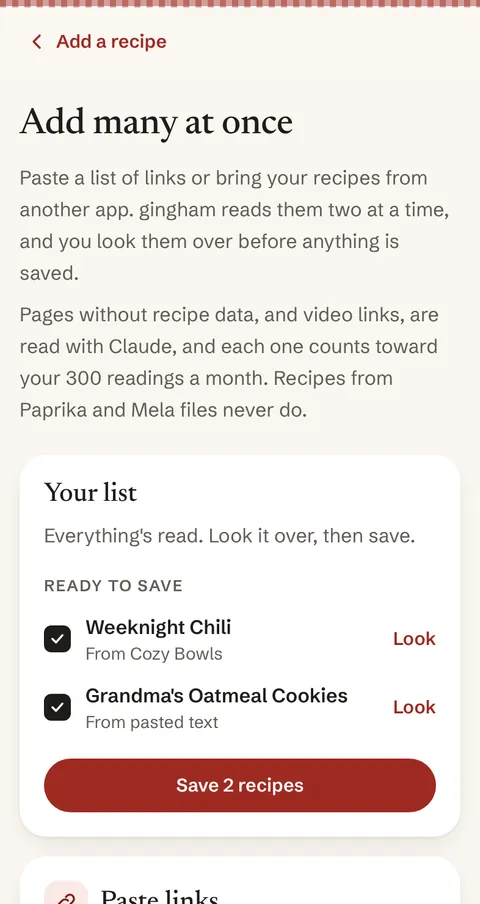
From Paprika
- In Paprika, choose Export, then Paprika Recipe Format.
- In gingham, tap Add, then Add many at once, and choose the file under Paprika or Mela.
- Look over the list, untick anything you don’t want, and save.
From Mela
- In Mela, touch and hold All Recipes (or one category) and choose Export.
- Choose the file in gingham’s Add many at once, the same way.
From Pinterest
Open a pin, tap through to the recipe’s own page, and copy that link. Paste all your links into Add many at once, one per line, and gingham reads them two at a time while you watch.
If you’ve asked Pinterest for a copy of your data, you can choose that file too, and gingham lists any recipe links in it. We couldn’t confirm that Pinterest’s copy says where each pin leads, so if it finds none, paste the links instead.
What to expect
- Up to 500 recipes at a time, and the list picks up where it left off if you leave the page and come back.
- Nothing is saved until you look it over and choose Save.
- Photos inside Paprika and Mela files stay behind. Add your own when you cook.
- Recipes from Paprika and Mela files never use Claude.
- Links to pages without recipe data, and video links, are read by Claude, an AI from Anthropic, and count toward your 300 free readings a month.
- Your browser’s bookmarks, or any list of links, work the same way.